

Documentation Index
Fetch the complete documentation index at: https://docs.akua.dev/llms.txt
Use this file to discover all available pages before exploring further.
This guide applies to managed clusters only. For imported clusters, worker management is handled by your cloud provider or yourself, depending on your cluster type.
Prerequisites
- An active managed cluster (status shows “Active” in the dashboard)
- A server or machine to connect (see supported operating systems below)
- Server meets minimum requirements: 2 CPU, 4 GB RAM (4 CPU, 8 GB RAM recommended for production)
How to add workers
Get worker setup command
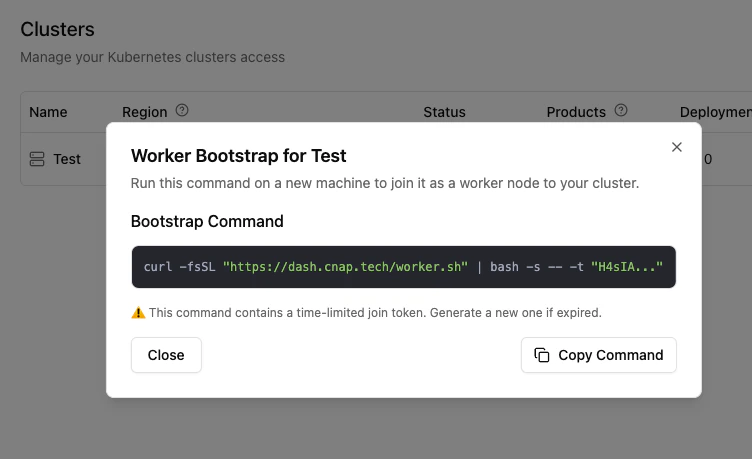
In your clusters dashboard, click on your cluster and find the “Quick Actions” section. Click “Add a worker” and copy the bootstrap command.The command looks like:Join token details: The token expires 30 minutes after generation and can be used multiple times to join multiple machines.
Bootstrap command
Connect and run setup command
SSH into your server:Then execute the bootstrap command you copied from the dashboard. The script automatically installs Kubernetes components, joins the worker to your cluster, and configures networking and security.
SSH to server
Automated provisioning with cloud-init
For fully automated worker provisioning, use cloud-init when creating servers on Hetzner, AWS, DigitalOcean, or any cloud provider. The server will automatically join your cluster on first boot — no SSH required.Copy cloud-init config
In your cluster dashboard, click “Add a worker” and switch to the “Cloud-init” tab. Copy the configuration:
Cloud-init config
Create server with cloud-init
When creating a new server in your cloud provider’s dashboard:
- Hetzner: Paste into “Cloud config” under “Additional features”
- AWS EC2: Paste into “User data” under “Advanced details”
- DigitalOcean: Paste into “User data” under “Advanced options”
- Vultr: Paste into “Cloud-Init User-Data”
- GCP: Paste into “Automation > Startup script”
Cloud-init’s
runcmd executes once on first boot only. If you need to re-run the bootstrap (for example, after a reset), you’ll need to use the manual command method or recreate the server.Revoke a bootstrap token
You can revoke an unused worker bootstrap token from the dashboard or withPOST /v1/clusters/{id}/worker_bootstraps/{wbs_id}:revoke. Revocation starts a
background operation: Akua records the token as revoked immediately, then
invalidates the k0s join token when the managed control plane is reachable.
If the cluster is suspended or temporarily unreachable, the operation waits until
the cluster can process the invalidation. If you cancel the operation after the
token is marked revoked, the dashboard keeps the bootstrap in the revoked state,
but the bearer token may still join workers until it expires naturally. Bootstrap
tokens expire within 24 hours.
Bring your own cloud key (BYOM)
If you have an existing cloud provider account, you can connect it to Akua so machines are provisioned in your account directly. This bypasses the machine, CPU, and memory resource quotas — you pay the provider directly. To use your own cloud key:- Navigate to Settings → Cloud providers in your workspace
- Add your cloud provider API key (Hetzner, AWS, DigitalOcean, and others are supported)
- When creating machines from the dashboard, select your cloud provider key
Supported operating systems
Workers support a wide range of Linux distributions and Windows Server:- Debian: 11 (Bullseye), 12 (Bookworm)
- Ubuntu: 22.04 LTS or later
- Red Hat Enterprise Linux: 7.9, 8.10, 9.5
- CentOS Stream: 9, 10
- Oracle Linux Server: 8.9, 9.3
- Amazon Linux: 2023
- Fedora: 41 (Cloud Edition)
- Fedora CoreOS: Stable stream
- Alpine Linux: 3.19, 3.22
- Flatcar Container Linux
- Windows Server: 2019 (experimental support)
Troubleshooting
Worker not appearing in dashboard
Worker not appearing in dashboard
- Verify the server has internet connectivity
- Check that the setup command was copied correctly
- Ensure you’re running as root (with
sudo) - Wait 2–3 minutes for the registration process
Setup command fails
Setup command fails
- Check server meets minimum requirements (2 CPU, 4 GB RAM)
- Ensure you’re using a supported Linux distribution (see supported operating systems)
- Verify no conflicting Docker or Kubernetes installations
- Verify server has outbound networking access to the control plane (outbound HTTPS connections are allowed by default, but check if behind a firewall)
Worker behind firewall or NAT
Worker behind firewall or NAT
Akua’s managed KaaS architecture is designed so workers don’t need public IP addresses. Workers automatically create outbound connectivity tunnels to the control plane, allowing the control plane to reach the kubelet securely. This works behind firewalls, NAT, and restrictive networks.
API
Manage clusters and machines programmatically.Clusters API reference
Cluster endpoints including worker bootstrap token generation.
Machines API reference
Provision and manage Akua-managed compute machines.
Related topics
Machines
Let Akua provision and manage machines for you.
Local testing
Test worker setup locally with Multipass before production.
Limits and pricing
Which limits apply and how BYOM bypasses quotas.
Storage
Add persistent storage after your workers are connected.